Travel eSIM for iPhone Duo: Setup, Dual eSIM & Roaming
iPhone Duo™ has no SIM tray in any country, so your data abroad runs on an eSIM. Check the phone is carrier-unlocked, install a travel eSIM on Wi-Fi before you fly and keep your home line on for calls and texts. When you land, set Cellular Data to the travel eSIM and turn on Data Roaming for that line only.
Is there a SIM tray on iPhone Duo?
No. Apple sells iPhone Duo as eSIM-only in every country, and its spec page says it isn’t compatible with physical SIM cards. Every line on the phone, home or travel, is an eSIM.
That’s less of a limit than it sounds. Apple says the phone stores eight or more eSIMs and runs two at the same time.
Abroad, that’s the setup you want: your home line stays on for calls and texts, and a travel eSIM carries your data. Only one line uses cellular data at a time, so you point data at the travel eSIM.
No tray means no plastic SIM from an airport kiosk either, so set your travel eSIM up at home: pick your destination before you fly.
iPhone Duo is a foldable iPhone: a 5.4-inch outer display when closed and a 7.6-inch inner display when open.
It’s available from October 23, 2026, and ships with iOS 27.1, which may offer to turn on your travel eSIM when you arrive (see below).
Check that your iPhone Duo is carrier-unlocked
A travel eSIM only works on an iPhone that isn’t locked to a carrier. Apple’s guide to using eSIM while traveling says this for every iPhone. Check before you buy a plan:
- Open Settings > General > About.
- Find Carrier Lock.
- If it says No SIM restrictions, the phone is unlocked and ready for a travel eSIM.
Anything else means a carrier has locked the phone, and only that carrier can unlock it. Apple explains how in unlocking your iPhone for a different carrier.
Got the phone from a carrier or on a carrier plan? Do this check first.
Bought before checking? If the eSIM can’t be installed or won’t activate, including on a locked phone, you get a full refund as long as no data has been used.
How to install a travel eSIM on iPhone Duo, closed or open
Install on Wi-Fi at home, a few days before you go. Installing needs an internet connection, and the moment you step off the plane is when you don’t have one.
Left it late? Airport Wi-Fi works too, before you board or after you land. Avoid in-flight Wi-Fi.
Doing it early costs nothing. Installing doesn’t start your plan: validity starts the first time the eSIM connects to a network in a country your plan covers.
The steps are the same on either display. You can’t point the camera at a QR code on the same phone, closed or open, and you don’t need to. Pick one of these three routes:
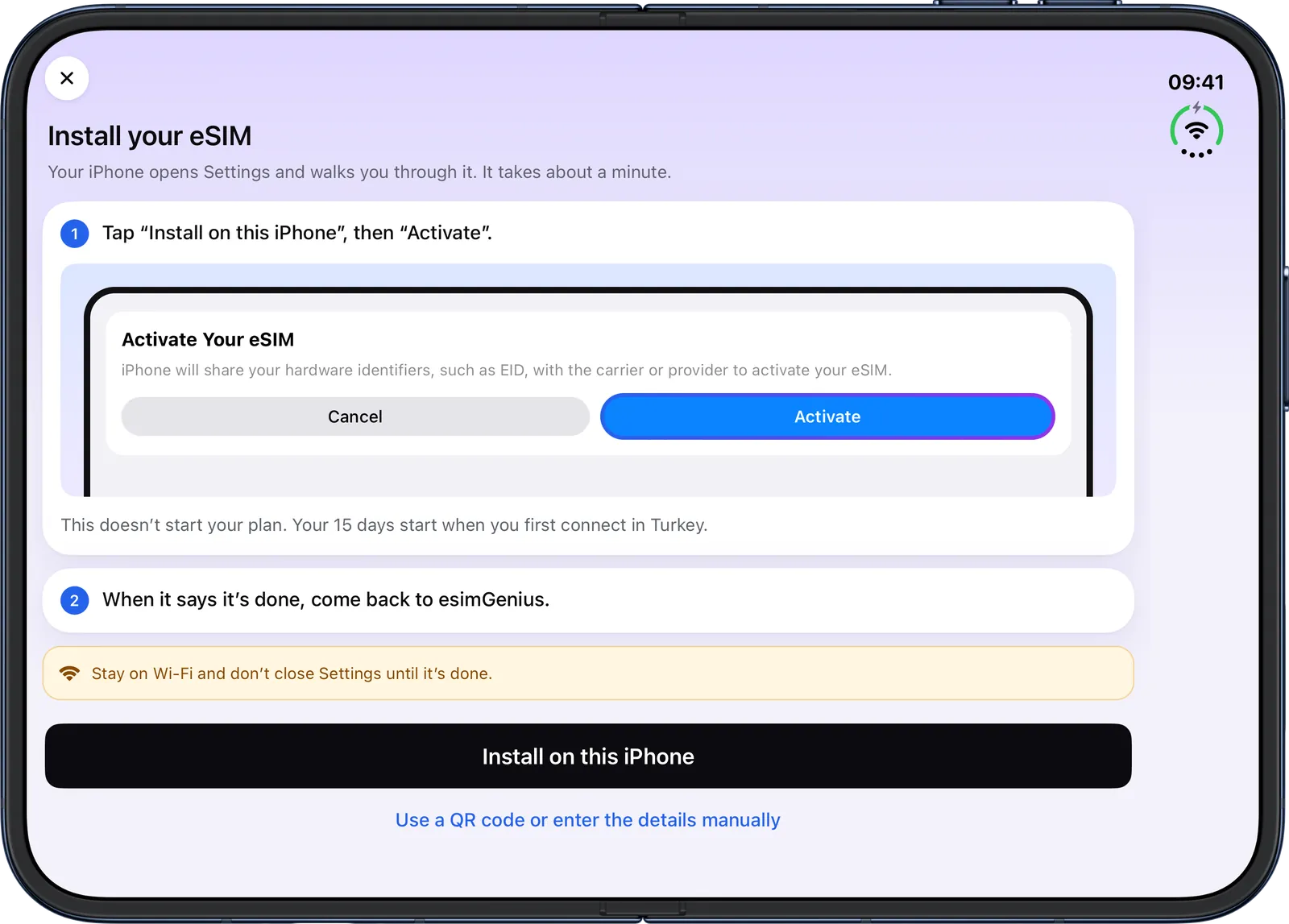
In the eSIM Genius app (quickest). In My eSIMs, open your eSIM and tap Install on this iPhone. Settings opens: tap Activate and follow the prompts. It takes about a minute.
Stay on Wi-Fi and don’t close Settings until it says it’s done.
On the website. Open your eSIM’s page in your account in Safari on the phone itself and tap Install on this iPhone. It opens the eSIM activation screen directly, with no QR scan.
Don’t see the button? Use the QR code or enter the details by hand (below).
With the QR code, or by hand. Tap and hold the QR code in the email (don’t scan it), then tap Add eSIM. Or go to Settings > Cellular > Add eSIM > Use QR Code and scan the code on a laptop screen.
No second screen? On the QR code screen, tap Enter Details Manually at the bottom and type in the details from your order.
iOS may also ask whether you plan to use the eSIM at home or while you travel. It’s a travel eSIM, so pick travel. From checkout to installed, the whole thing takes under five minutes.
Last step: label the line. In Settings > Cellular, tap the new line, usually the last one in the list. Tap Cellular Plan Label and pick or type Travel. From here on, that’s your Travel line.
Already in a country your plan covers? Keep your Travel line off until your trip: in Settings > Cellular, tap Travel and turn off Turn On This Line.
Setting up a second phone, or an Android? The general steps are on how it works.
Keep your home number with Dual SIM
eSIM Genius plans are data only: no phone number, no calls, no SMS. So you keep your home line switched on.
Calls, texts and the one-time codes your bank sends still reach your usual number, as long as your home carrier has roaming in that country.
iMessage, FaceTime and WhatsApp keep your usual number, and their calls and messages run on your Travel line’s data.
Apple calls this Dual SIM. In Settings > Cellular, keep Default Voice Line set to your home number. Data goes to your Travel line: the steps are in the next section.
Leave Allow Cellular Data Switching off. Apple notes it doesn’t work while you’re using Data Roaming, so data pauses during a regular call on your home line. WhatsApp and FaceTime calls aren’t affected.
Your home carrier still bills calls and texts on your home line, the same as without the eSIM. Expect a lot of calls? Check its roaming rates before you go, or move those calls to WhatsApp or FaceTime.
Moving your number over? Do it before the trip. With some carriers, eSIM Quick Transfer moves it from your old iPhone, including from a plastic SIM. Otherwise your carrier activates it. See Apple’s eSIM setup guide.
Data Roaming and Cellular Data: what to change after you land
Apple says iPhone may show Turn On Travel eSIM when you arrive. Choose Travel eSIM and Current eSIM, not Travel eSIM Only, so your home number stays reachable.
Either way, check these four settings in Settings > Cellular:
- Tap Travel and make sure Turn On This Line is on.
- On the same page, turn on Data Roaming. It appears near the bottom once the line is on. Not there? Look under Cellular Data Options.
- Go back, tap Cellular Data and choose Travel.
- Tap your home line and check that Data Roaming is off, so your home carrier can’t charge you for roaming data.
Data Roaming on the Travel line is right, not a mistake. A travel eSIM like ours works by roaming onto local networks, and you’ve already paid for the plan, so roaming on that line adds nothing to the price.
If iOS then offers Low Data Mode, that’s your call: it makes apps use less data, which helps on a small plan.
No data after a few minutes? Turn Airplane Mode on and off, or restart the phone, then check the four settings again.
Still stuck? On airport or hotel Wi-Fi, ask Roger, our AI eSIM advisor, in the app or on the site.
Wondering why this beats your carrier’s day pass? See eSIM vs roaming charges, or read the complete travel eSIM guide.
The eSIM Genius app on iPhone Duo: closed and open
The eSIM Genius app is optimized for iPhone Duo: it fills both displays, closed or open, and adapts when you fold or rotate it. That came in version 2.0.2, free on the App Store.
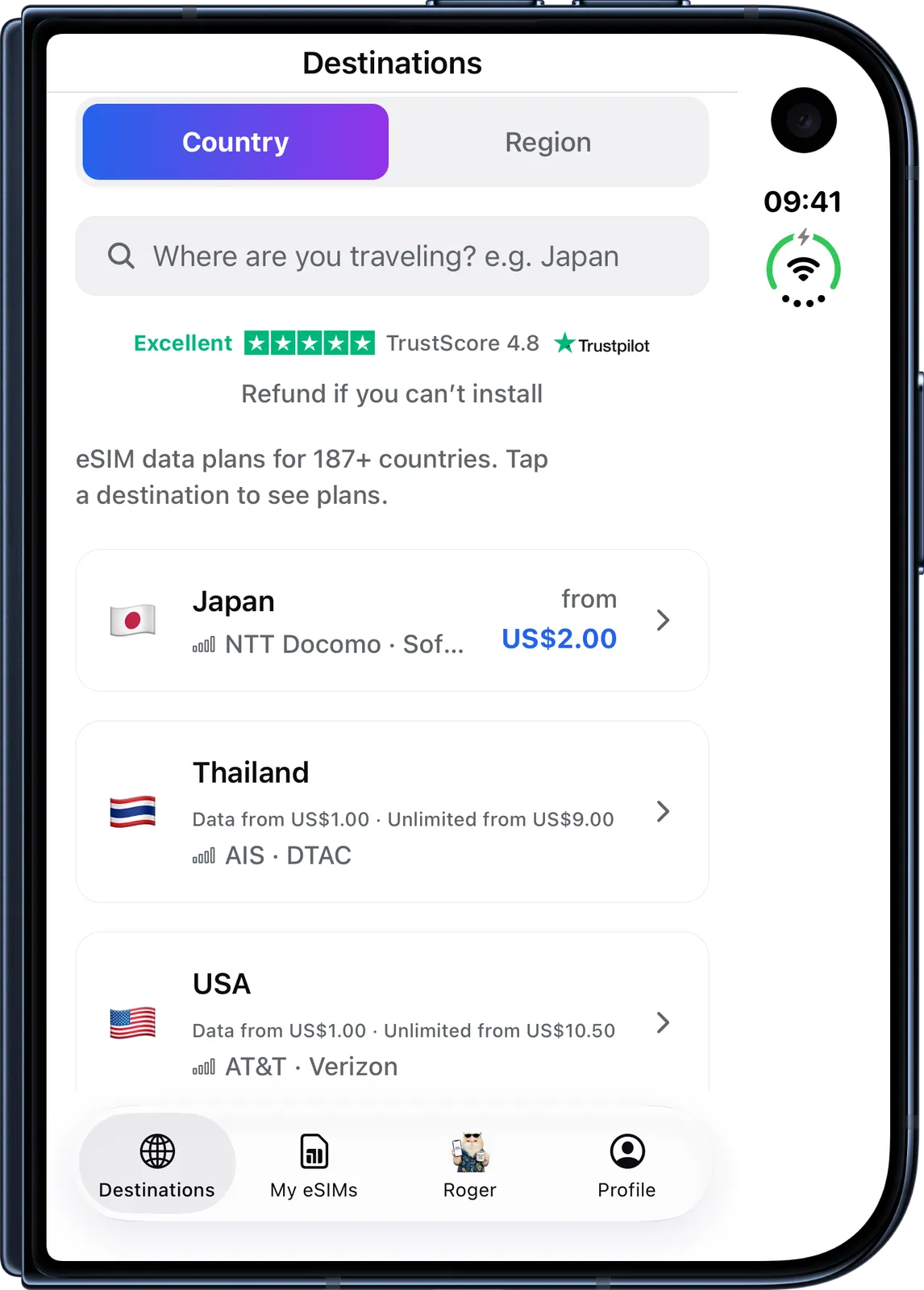
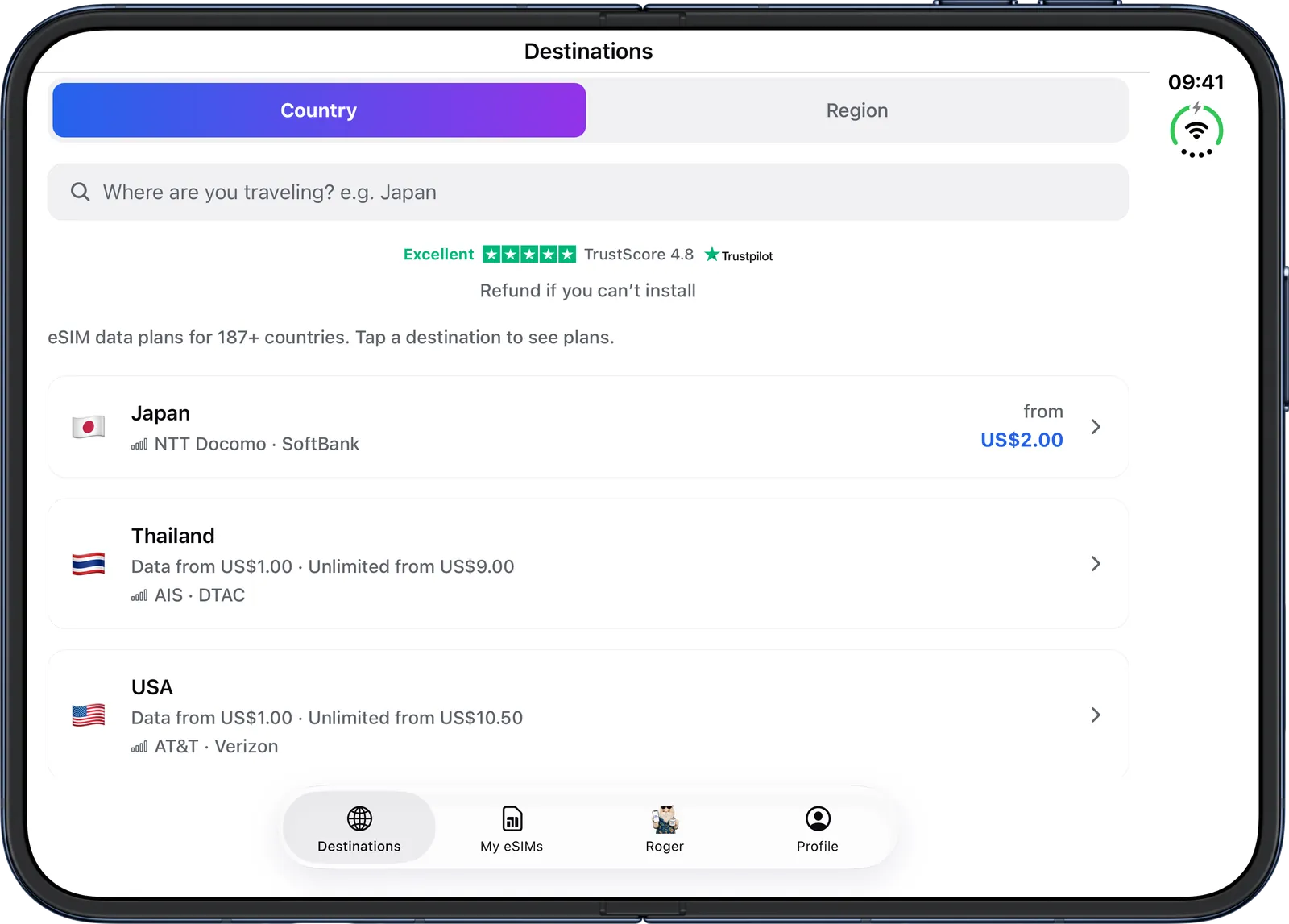
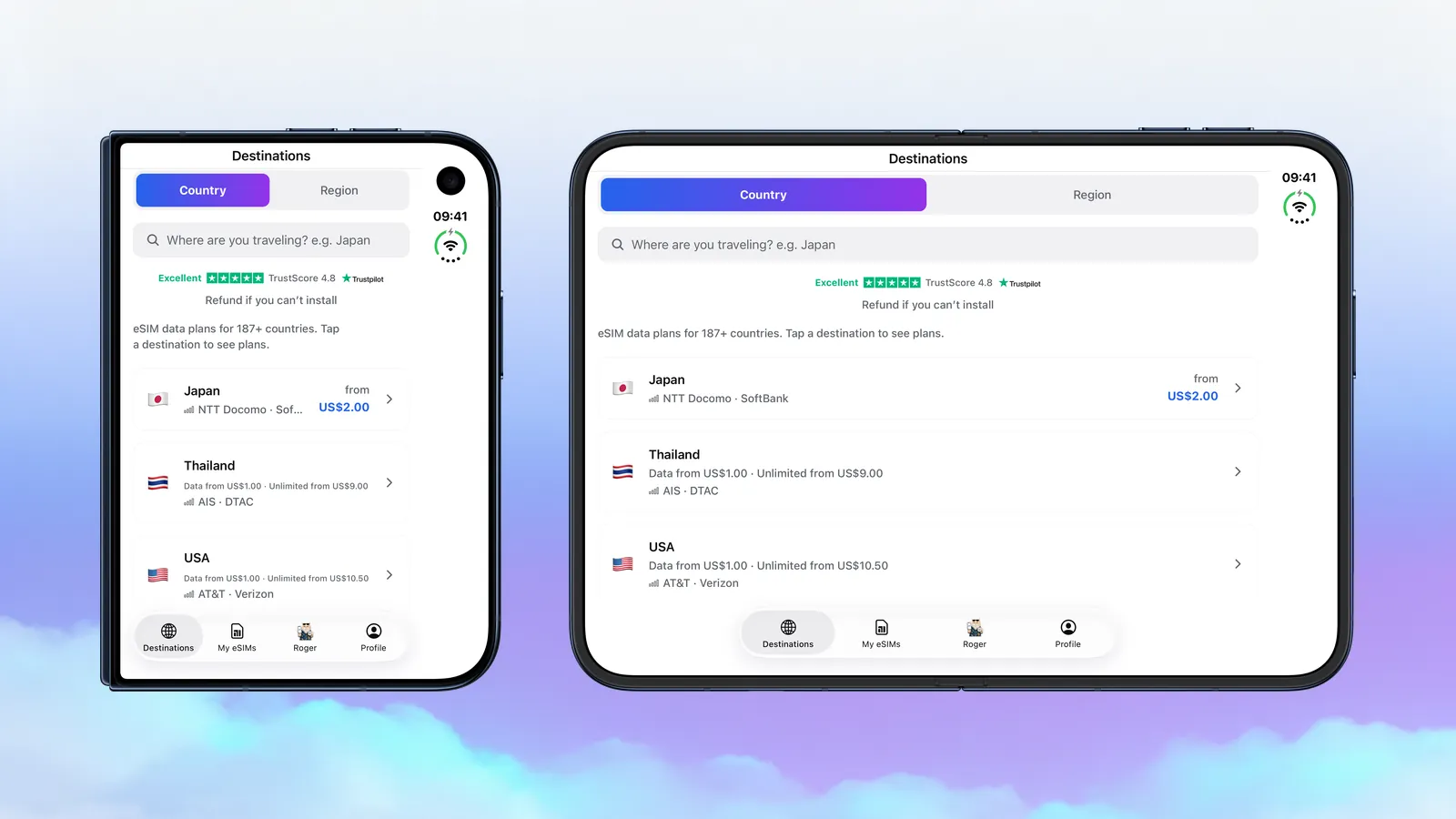
Closed, the app fills the 5.4-inch outer display. Search a destination and compare its plans without unfolding the phone.
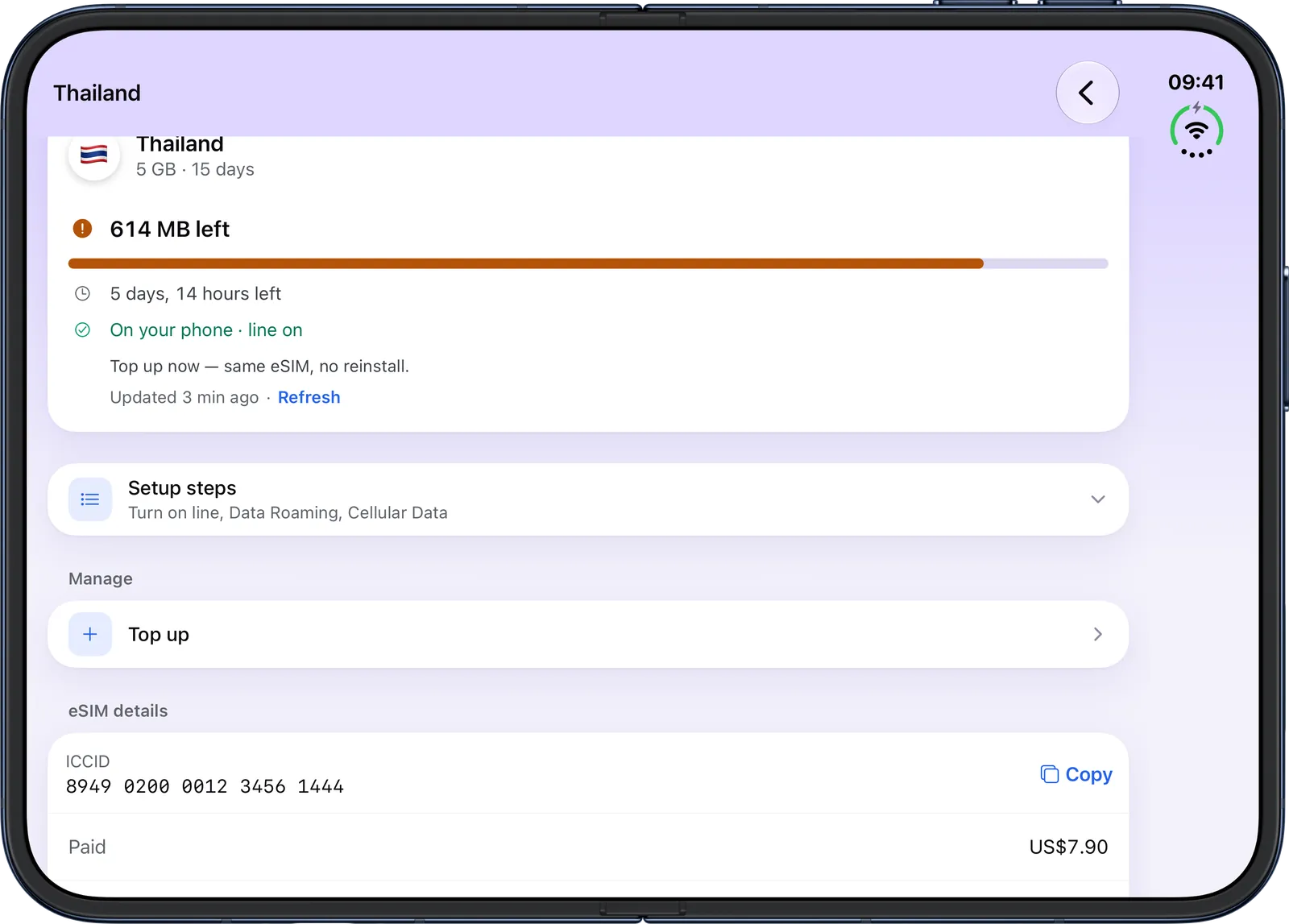
Open, the 7.6-inch inner display gives the same screens more room. It’s the better view for following the install steps and for checking an eSIM: data left, days left and the setup steps for your line.
The tabs stay the same when you fold or unfold: Destinations, My eSIMs, Roger and Profile. Not sure how much data you need? Ask Roger.
How we checked: the screens in this guide come from app 2.0.2 on Apple’s iPhone Duo simulator, closed and open, with demo account data.
The simulator can’t install an eSIM, so the install steps follow Apple’s support guides, and the roaming steps follow our own check on a current iPhone.
Everything else the app does is in our guide to the eSIM Genius app.
Top-ups, coming home, and why you never delete the eSIM
Running low? Open the eSIM in the app and tap Top up. The data is added to the same eSIM within seconds: no new QR code, no reinstall.
Coming home. Apple says iPhone can turn off your Travel line and turn your home line back on when you return, depending on your country or region.
If yours doesn’t, go to Settings > Cellular, turn off Travel and set Cellular Data back to your home line.
The one thing not to do: don’t delete the travel eSIM, even to fix a problem. Installing is single-use, so a deleted eSIM usually can’t be put back from the same link or QR code.
Restart the phone or turn the line off and on instead.
Between trips, leave your Travel line switched off rather than removing it. The eSIM stays on the phone, ready for a top-up before your next trip.
What to look for in a travel eSIM for iPhone Duo
Like any eSIM iPhone, iPhone Duo can run a travel eSIM from any provider, as long as it’s unlocked. The phone isn’t the hard part. The plan is. Ask these before you pay:
- Data only, or a number? Need a local number for calls? Our plans are data only, so look for a plan that includes one.
- What if it won’t install? Look for a full refund. Ours is in the carrier-lock section above.
- Can you top up the same eSIM? If not, running low means a new QR code and a second install. Ours tops up in the app.
- Does the coverage fit the trip? Pick a single-country plan, a regional plan such as Europe, or the Global plan.
- How often do you travel? If it’s every month, a subscription keeps one eSIM on the phone. Ours is Global Monthly, billed monthly in USD, and you can cancel anytime.
- Does unlimited mean unlimited? Check whether the data gets throttled. Our Unlimited plans have no throttling: unlimited data, explained.
Pick yours from the destinations list, install it at home, and your iPhone Duo is ready before you board.
FAQ
Does iPhone Duo have a SIM card slot?
No. iPhone Duo is eSIM-only in every country and doesn’t take physical SIM cards. Your home line and your travel plan both run as eSIMs, and the phone can keep two of them on at once.
Can I buy a local SIM card abroad with iPhone Duo?
Not a plastic one: there’s no SIM tray. A local carrier’s eSIM can work if the phone is unlocked and the carrier supports eSIM, but you’d set it up after you land. A travel eSIM installed at home is ready when you switch it on.
What if the travel eSIM won’t install on my iPhone Duo?
If our eSIM can’t be installed or doesn’t activate, including on a carrier-locked phone, you get a full refund as long as no data has been used. First check that you’re on Wi-Fi and that Carrier Lock shows No SIM restrictions.
Do I need to unlock iPhone Duo to use a travel eSIM?
Only if a carrier has locked it. Check Settings > General > About: next to Carrier Lock it should say No SIM restrictions. If it says anything else, ask that carrier to unlock it.
Will I keep my number and WhatsApp with a travel eSIM on iPhone Duo?
Yes. The travel eSIM is a second, data-only line. Your home line stays on for calls and texts, and WhatsApp, iMessage and FaceTime keep using your usual number.
Can I install the eSIM before my trip, and does that start my plan?
Yes, install it on Wi-Fi before you fly. Installing doesn’t start your plan: validity starts the first time the eSIM connects to a network in a country your plan covers. Already in one? Keep the line off until your trip.
Does the eSIM Genius app work on both displays of iPhone Duo?
Yes. Since version 2.0.2 the app fills both displays, closed or open, and adapts when you fold or rotate the phone. The install itself runs in iOS Settings.
How do I move my home number to iPhone Duo?
It depends on your carrier: eSIM Quick Transfer from your old iPhone, which some carriers also allow from a plastic SIM, or activation by the carrier. Do it before your trip, so your home line works before you add the travel eSIM.